How to Recall a Sent Email in Gmail? If you often end up sending the wrong file, missing a line, or emailing the wrong person or organisation by mistake, Gmail’s Undo Send feature can save you from these common errors. It briefly holds your email before sending it, giving you a quick chance to fix any mistake.
In this article, today you’ll learn how Gmail recall works, how to enable it, and some additional smart daily habits to avoid a general email blunders forever.
Gmail Recall Feature Explained
Gmail actually doesn’t pull back an email once it reaches someone’s inbox.
But the good thing is, Gmail gives you a small safety feature window. Instead of sending your email instantly, it holds a mail for a few seconds so you can quickly undo it if something feels you that is wrong.
In a simple words, the moment you hit “Send,” Gmail gives you a short chance to rethink again and stop that email before it goes out for real.
How Undo Send Works in Gmail
By default, Gmail stops your email for a few seconds before sending it out. The good part is, you can extend this timing based on what feels comfortable for you, so you get a little extra time to catch any mistakes.
Follow these steps to enable Gmail Recall:
- Open a Gmail on your computer
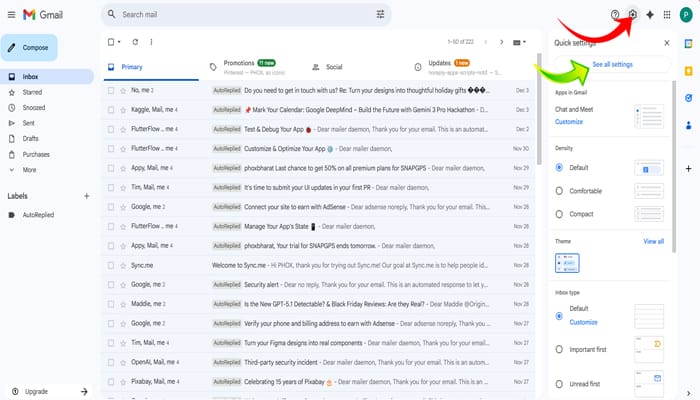
- Click to the Settings (⚙️) icon
- Select See all settings
- In the General tab, find out Undo Send
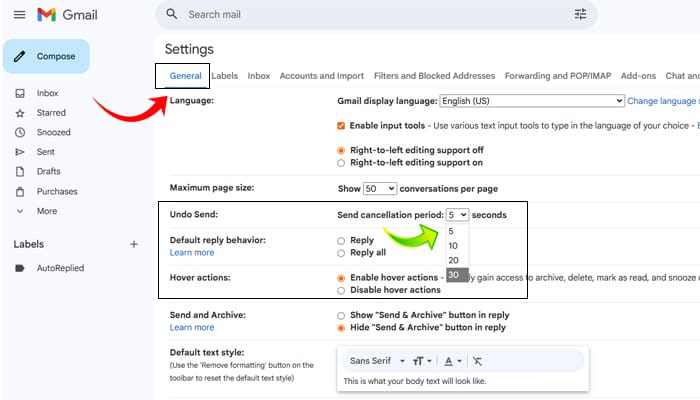
- Set the cancellation period to:
- 5 seconds
- 10 seconds
- 20 seconds
- 30 seconds (Recommended)
- Click the Save Changes
Now whenever you send an email, you’ll see Undo in the bottom-left corner.
Clicking it returns your email to Drafts, where you can edit or delete it.
What is the limitations of gmail recall
Many users search for How to Recall a Sent Email in Gmail?, but it’s important to know that Gmail does not truly recall an email once it is delivered. It’s important to understand the limits of gmail:
- Undo works only within the time window you set 5, 10, 20, 30.
- If you miss that time, email cannot be undone.
- If the receiver opens mail it immediately, you cannot revoke it.
- You cannot recall emails in Gmail like you can in Microsoft Outlook (true recall is not available).
So choosing 30 seconds is the smartest move.
A Safer Alternative: Use Scheduled Send
If you often send important emails, or you tend to send in a rush, use Gmail’s Scheduled Send feature.
Benefits:
- Gives you minutes, hours, or even days to review your email
- Helps you double-check attachments
- Prevents accidental sending
- Great for business and official communication
How to Schedule an Email:
- Compose your email
- Click the down-arrow next to Send
- Select Schedule Send
- Choose your preferred date and time
This method is very extremely helpful when writing sensitive or professional work emails.
Smart Tips to Avoid General Email Mistakes
To make your emailing error-proof, follow these habits:
1. Add the Email Address at the End
Write your subject and content first. Add the recipient’s email after reviewing everything.
2. Double-Check Attachments
Most mistakes happen due to wrong or missing files. Make it a habit to check attachments twice.
3. Use Templates for Repeated Emails
If you often send similar emails, save them as templates to avoid typing mistakes.
4. Read Your Email Out Loud
This helps catch missing lines or wrong sentences easily.
5. Turn On Gmail “Attachment Reminder”
If you write “attached” in your email but forget to attach a file, Gmail will warn you.
6. Keep ‘Undo Send’ at 30 Seconds Always
This is the best safety buffer for all users.
Conclusion
Now you know How to Recall a Sent Email in Gmail? using Undo Send, and how to avoid common email mistakes.
Along with features like Scheduled Send and the smart habits listed above, you can ensure your emails are always accurate and professional.
If you are wondering How to Recall a Sent Email in Gmail?, the Undo Send feature is currently the only way to stop a message before it gets delivered.
Along with features like Scheduled Send and the smart habits listed above, you can ensure your emails are always accurate and professional. For more tips on keeping your devices secure, check out 8 Daily Cybersecurity Habits to Keep Your Phone & Laptop Safe.
FAQs
Can I recall an email after it has been sent in Gmail?
No, Gmail does not allow you to recall an email once it has been fully delivered. You can only undo the email within the time window (5–30 seconds) you set in the Undo Send settings.
How do I enable the Undo Send feature in Gmail?
Go to Gmail Settings → See all settings → General → Undo Send.
Select a cancellation period (preferably 30 seconds) and click Save Changes.
Can I recall an email after 1 minute or 1 hour in Gmail?
No. Gmail’s recall option works only within the chosen time window (max 30 seconds).
After that, the email is delivered and cannot be pulled back.
Why can Outlook recall emails but Gmail cannot?
Outlook uses a different system where both users are usually on the same company server, which allows recall.
Gmail works on the internet and routing system, where true recall is technically not possible.
Does Undo Send work on Gmail mobile app?
Yes, the Undo option appears on both Android and iOS apps.
After tapping Send, you will see Undo at the bottom for a few seconds.
- CERT-In Microsoft High Risk Alert 2026: Powerful Security Update Guide for Windows Users
- 7 Powerful Differences: CNAP vs Truecaller – Which Caller ID Is Better in 2026?
- 🔥 Jio Happy New Year 2026 Offer: Powerful Plans With Free Gemini AI Pro & Unlimited 5G (Complete Guide)
- WhatsApp Calls Location Tracking Warning: Your Location Can Be Exposed 2025
- WhatsApp Missed Call Voice and Video Messages: How to Use the New Feature in 2025







1 thought on “How to Recall a Sent Email in Gmail? 6 Easy Steps to Undo Send”